 Omarchy Pocket
Install · ClockworkPi uConsole
ClockworkPi uConsole
A Debian package beside Raspberry Pi OS. One command installs it. Its own menu gives the panel back to the desktop.
- Release
- v0.2.1:
omarchy-pocket-uconsole_0.2.1_arm64.deb - Runs on
- A uConsole with a Raspberry Pi CM4, on ClockworkPi's Raspberry Pi OS 13 (trixie), 64-bit
- Space
- 3.5 GB free: an 802 MB download that unpacks to 2.7 GB
- Time
- About 10 minutes, most of it the download
Before you start
- The uConsole runs ClockworkPi's Raspberry Pi OS 13 image with its desktop, and you are logged in as its user (the one with uid 1000) with
sudo. - It is online: the package downloads Omarchy's root from the release.
df -h /shows at least 3.5 GB available.
Install
- Open a terminal on the desktop, or SSH into the uConsole, and download the package:
curl -LO https://github.com/pocket-nexus/omarchy-pocket/releases/download/v0.2.1/omarchy-pocket-uconsole_0.2.1_arm64.deb - Install it:
It downloadssudo apt install ./omarchy-pocket-uconsole_0.2.1_arm64.debomarchy-pocket-root.tar.zst(802 MB), checks its SHA-256 against the one the package carries, and unpacks it into/var/lib/omarchy-pocket/root. At the end it prints the commands below. - Switch the panel to Omarchy Pocket:
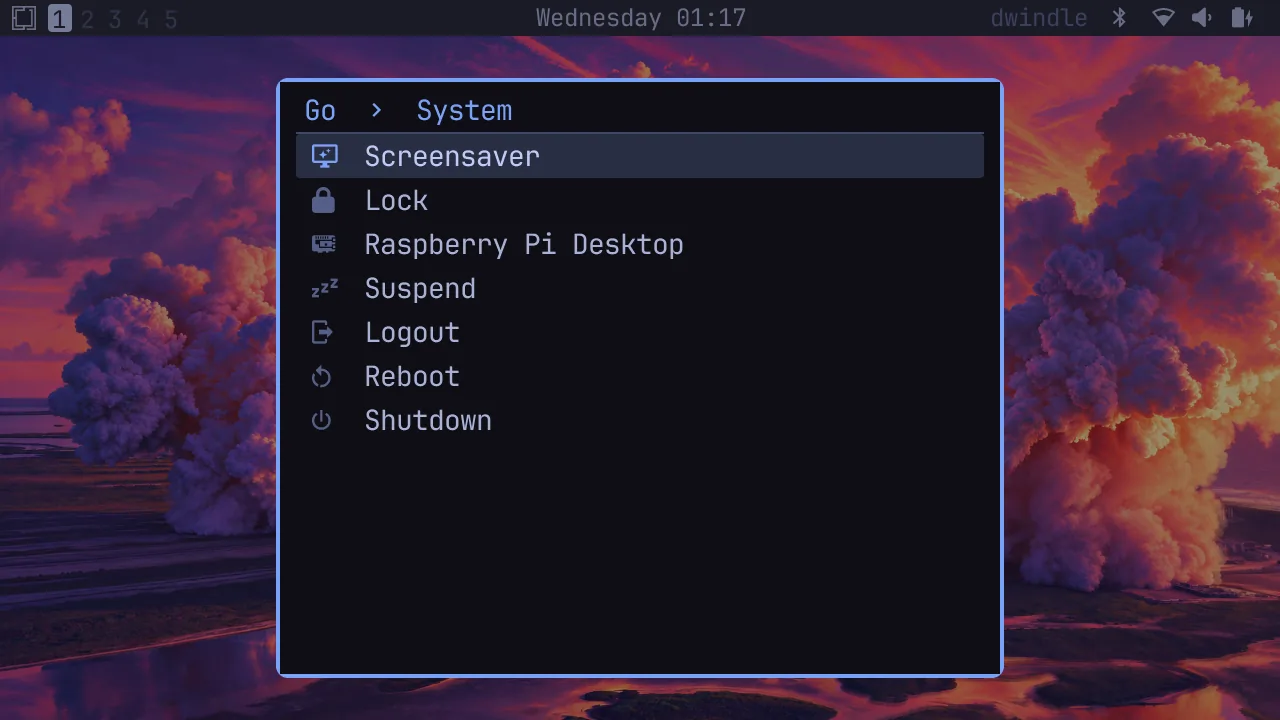
or pick Omarchy Pocket in the desktop's menu (System). The desktop closes, and Omarchy Pocket comes up in a few seconds.omarchy-pocket-session on
First start
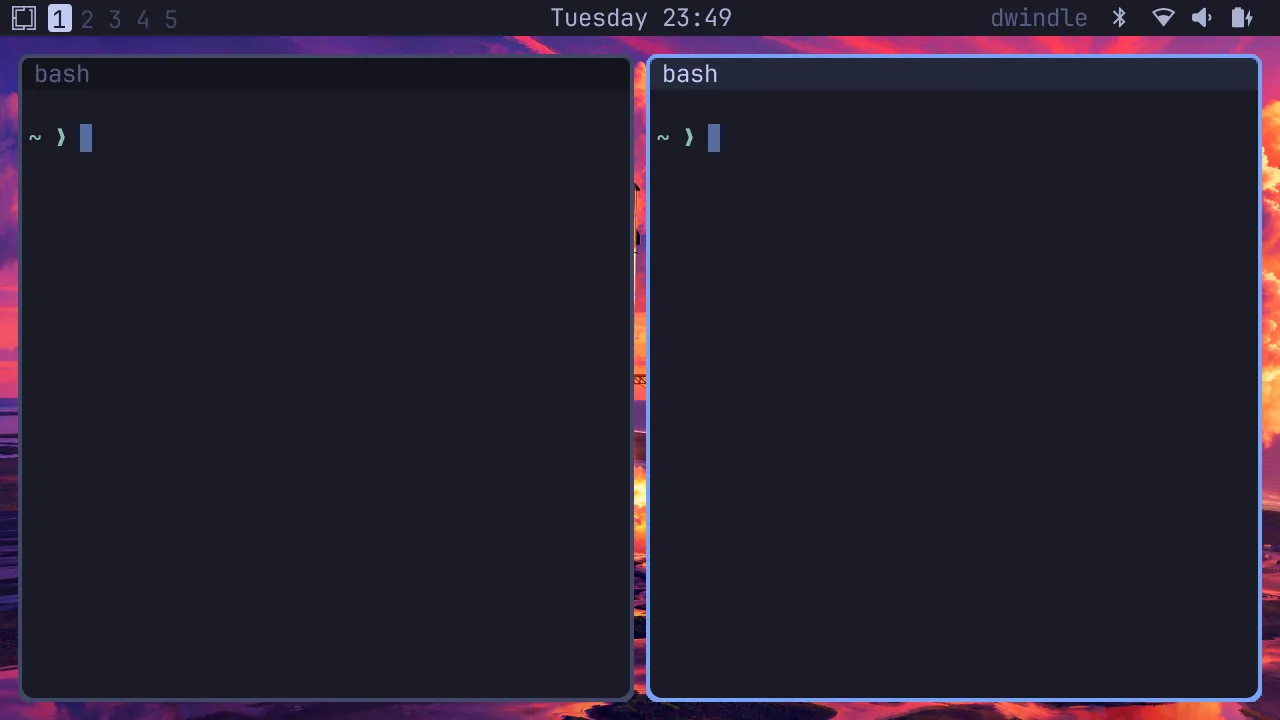
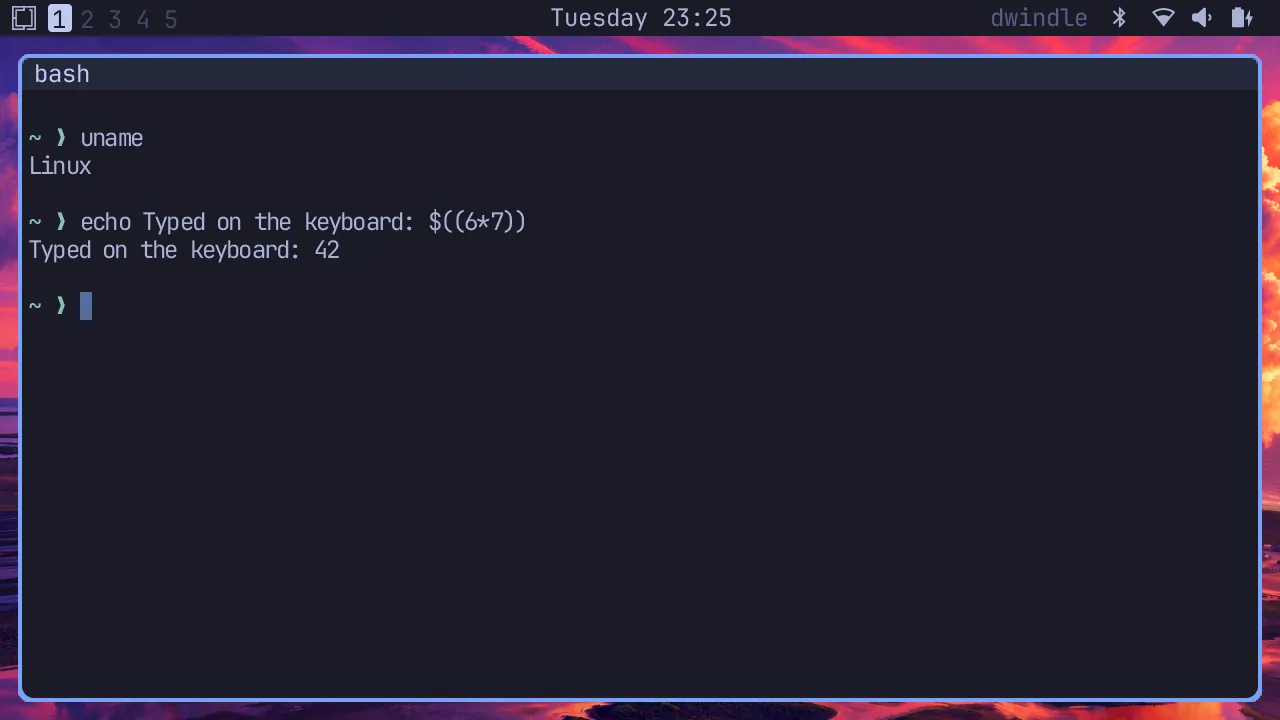
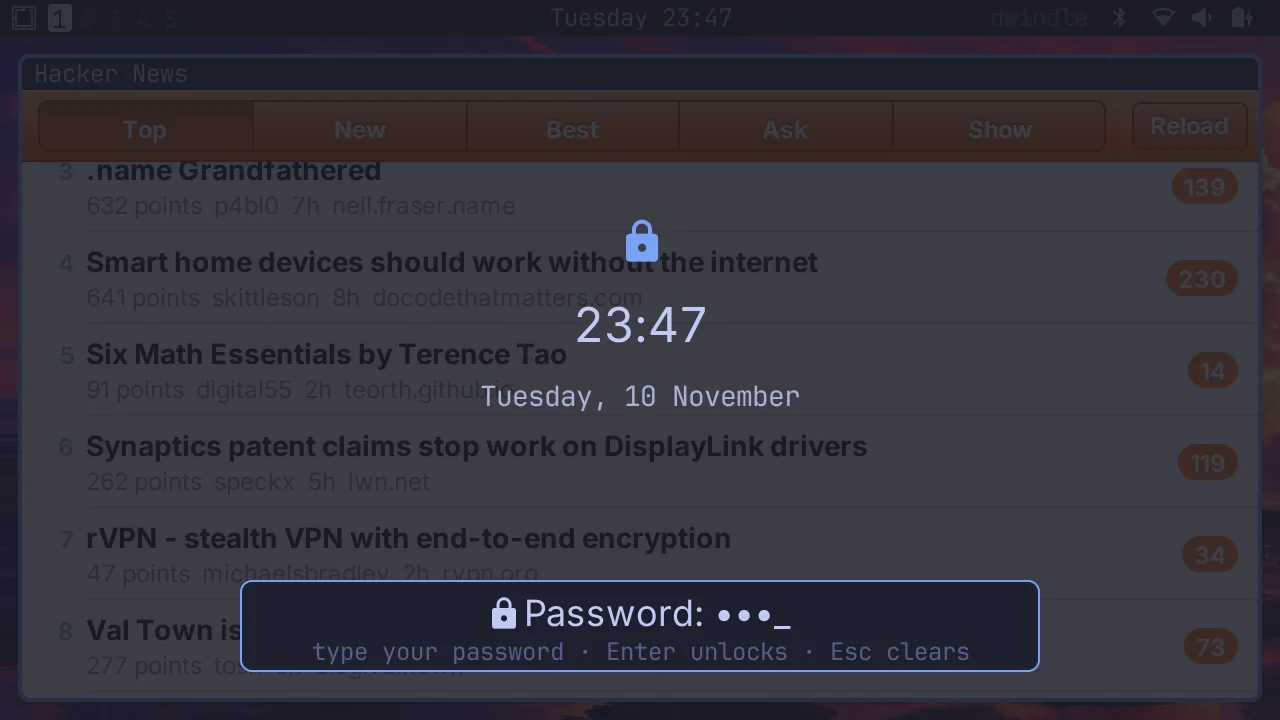
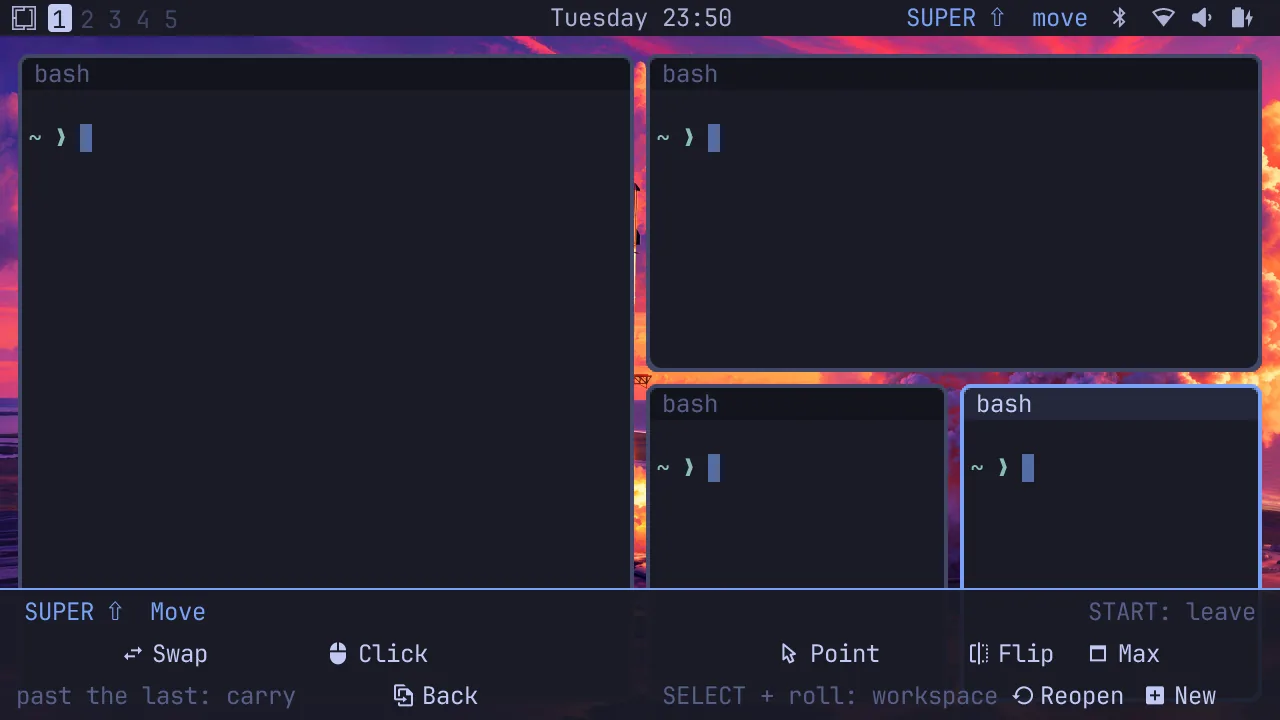
Omarchy Pocket starts on the Tokyo Night theme, with Omarchy's bar along the top. The lock screen takes your own login password. To open a terminal, tap START, then press Return.
Controls
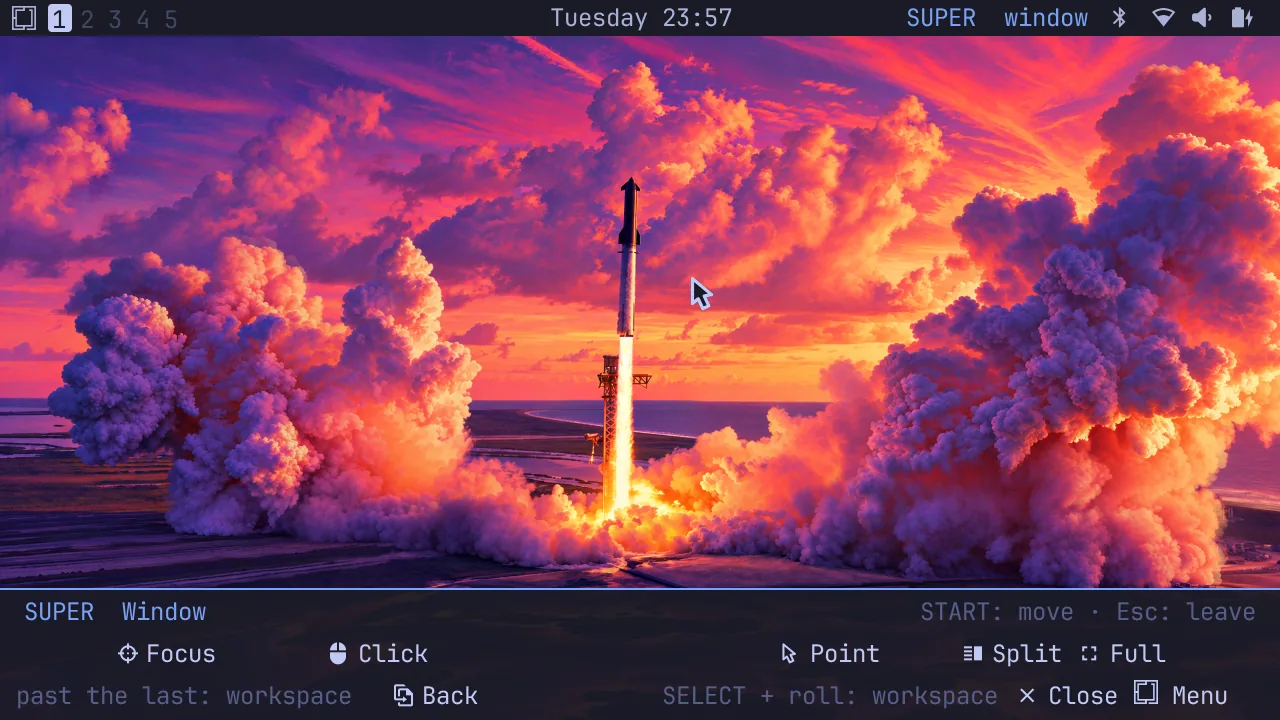
The uConsole has no shoulder buttons, and the thumb on the D-pad cannot also hold a modifier beside it. So START, under the left thumb, is SUPER:
- Held, it is SUPER while it is down: START + A opens the menu.
- Tapped, SUPER stays on, so the left thumb can walk the D-pad from window to window. Tap again for the move layer (SUPER + Shift). Tap a third time, or press Esc, to leave.
| Control | No SUPER | SUPER (START) | SUPER + Shift (START twice) |
|---|---|---|---|
| D-pad | Arrows | Focus a window; past the last one, the next workspace | Swap windows; past the last one, carry it to the next workspace |
| A | Enter | Omarchy's menu | Open another |
| B | Backspace | Close | Reopen closed |
| X | Tab | Fullscreen | Maximize |
| Y | Space | Toggle split | Swap split |
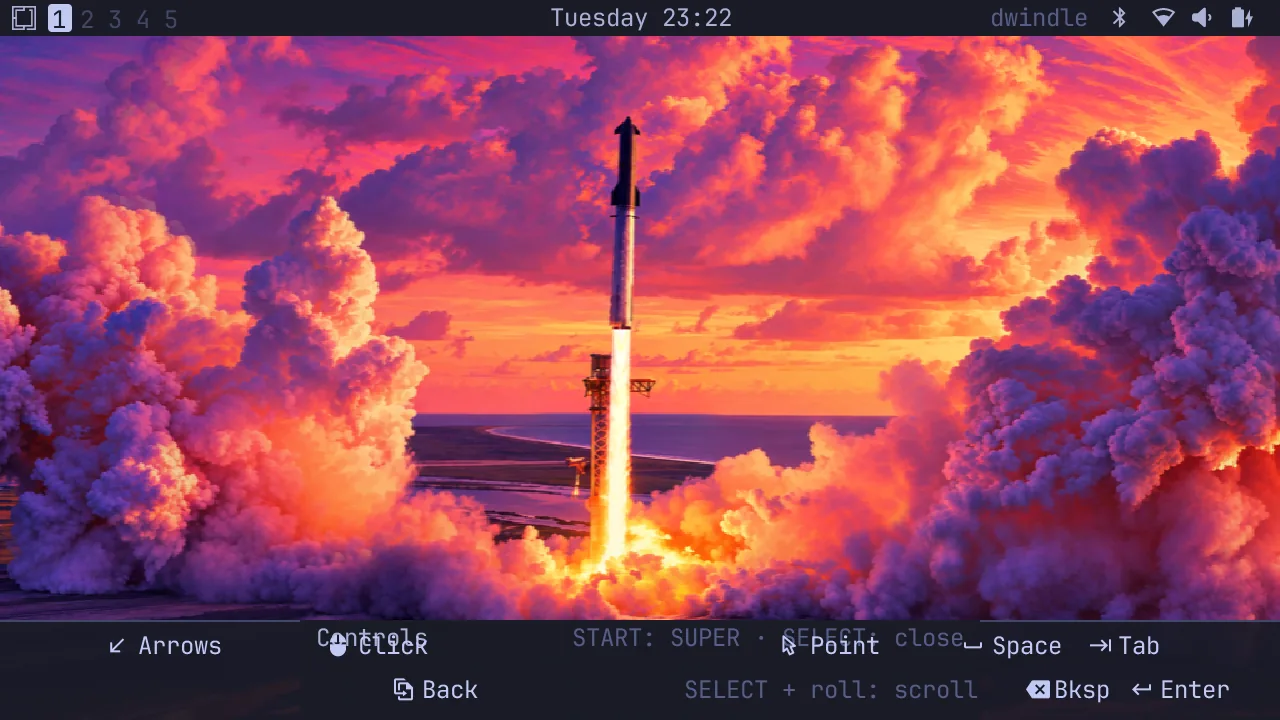
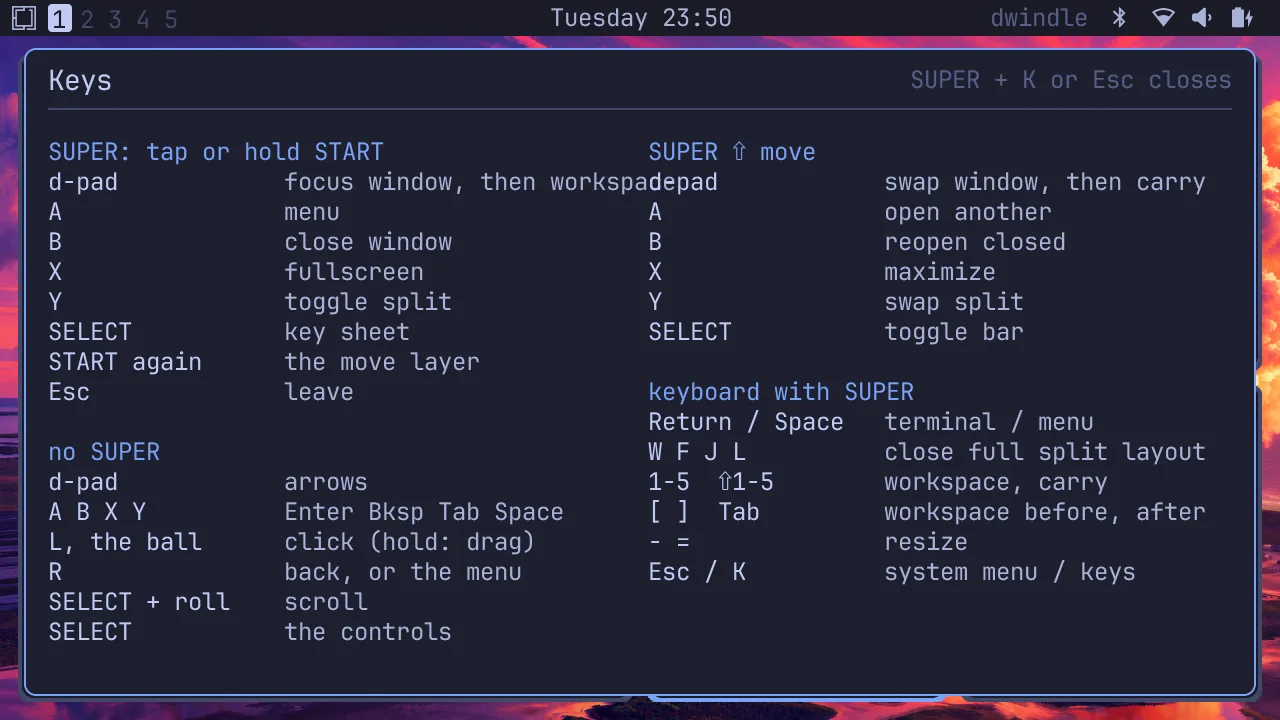
| SELECT | Alone: the controls row; held: the ball scrolls | Key sheet | Hide or show the bar |
| L / ball press | Click; hold to drag | Click | Click |
| R | Back (in an applet or the menu); Omarchy's menu on the wallpaper | Back | Back |
| SELECT + roll | Scroll | Previous or next workspace | Previous or next workspace |
Under SUPER, the keyboard has Omarchy's own bindings: Return terminal, Space menu, W close, F fullscreen, J split, L layout, 1–5 a workspace (with Shift: carry the window there), [ ] or Tab the workspace before or after, - = resize, K every binding, Esc the System menu. The keyboard's own Cmd key (Fn + Alt) works as SUPER too.
Menu and applets
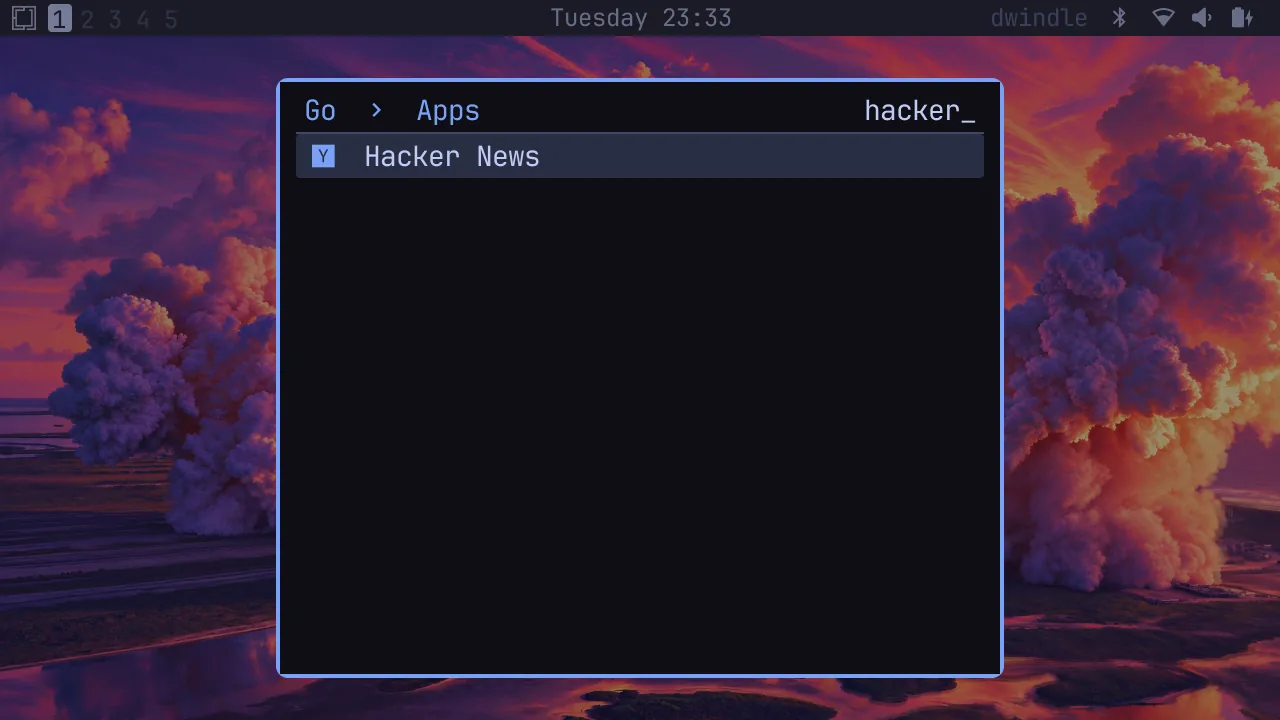
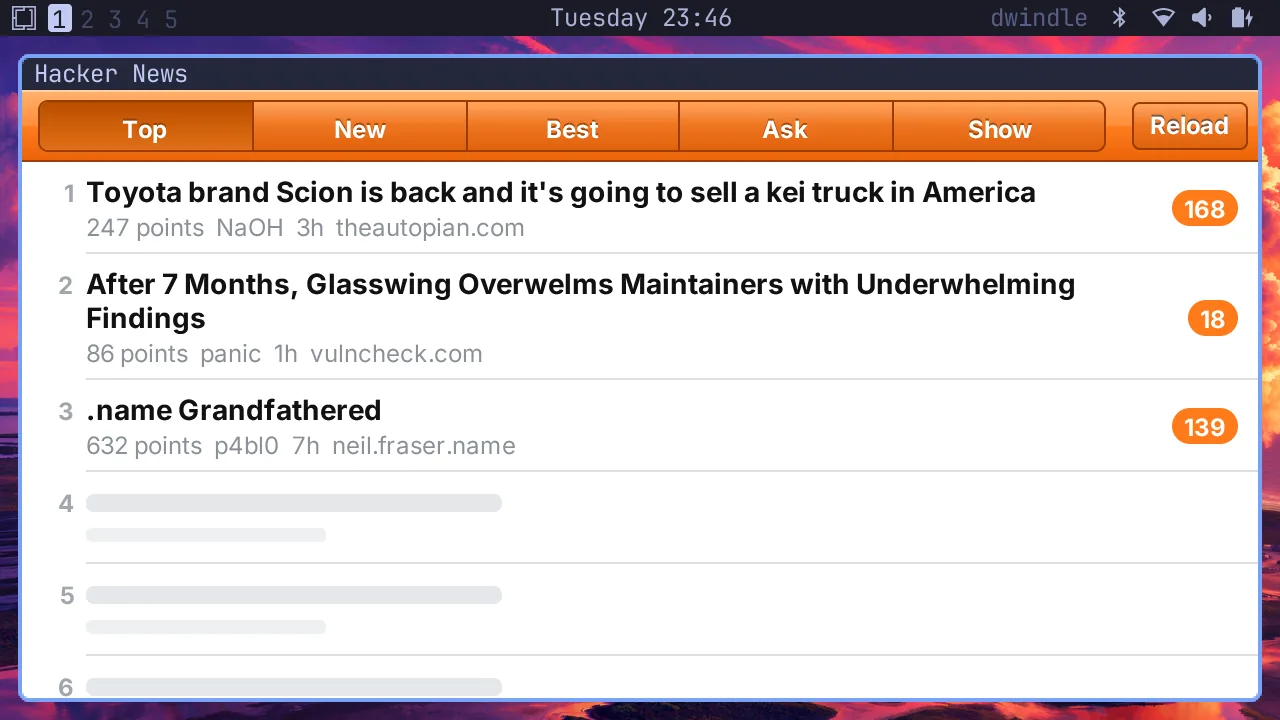
Omarchy's menu (START + A, or a click on the logo) takes typing: type a few letters to filter it. Hacker News, YouTube, Maps, Podcasts, Weather, GitHub, X, Discord and Home Assistant open in windows. Point at them with the trackball, click with L, scroll with SELECT + roll, and go back with R.
Back to the Raspberry Pi desktop
| To switch | From Omarchy Pocket | From the desktop | Anywhere |
|---|---|---|---|
| To the desktop now | Menu › System › Raspberry Pi Desktop | omarchy-pocket-session off | |
| To Omarchy Pocket now | Menu › System › Omarchy Pocket | omarchy-pocket-session on | |
| What starts at boot | omarchy-pocket-session boot or desktop |
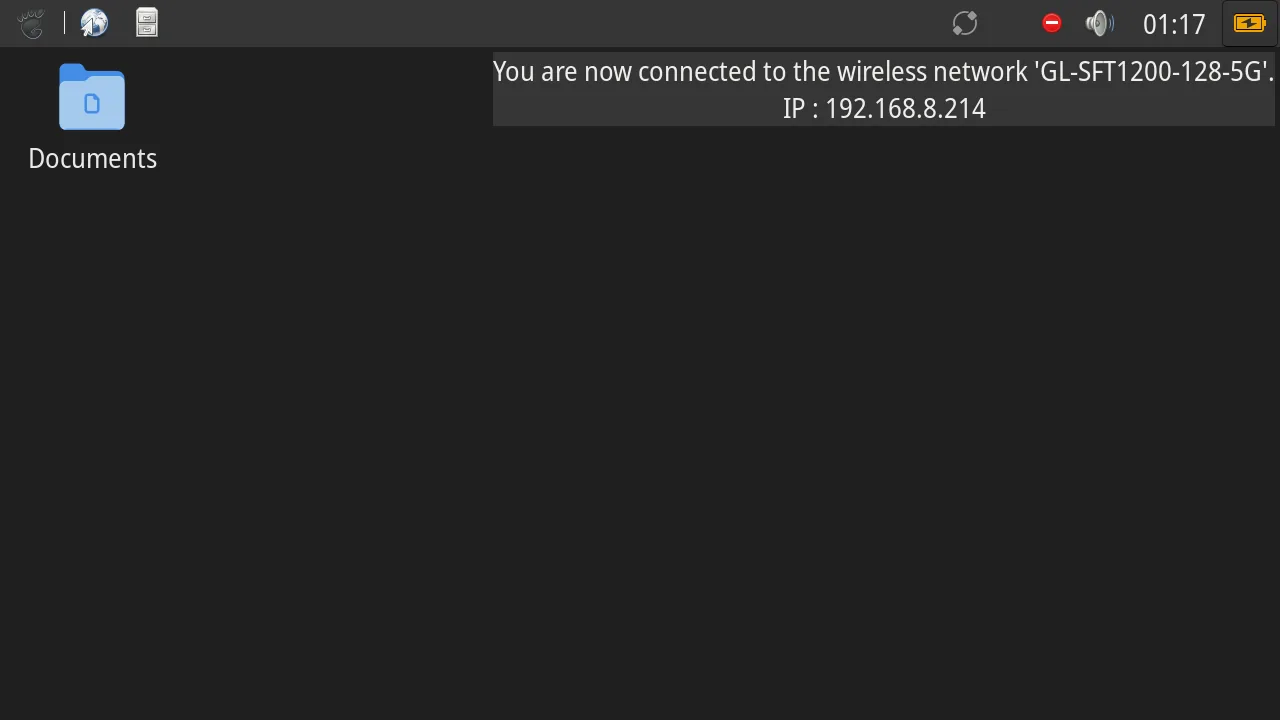
Wi‑Fi, Bluetooth and sound are Raspberry Pi OS's own, so a network joined on one side works on the other. Omarchy's files live in its own root, /var/lib/omarchy-pocket/root: its home is /var/lib/omarchy-pocket/root/home/omarchy as the desktop sees it.
Update and uninstall
- Update: download a newer package and
sudo apt installit the same way. The root stays. - Uninstall:
sudo apt remove omarchy-pocket-uconsolegives the panel back to the desktop, now and at boot. The root stays. - Remove everything:
sudo apt purge omarchy-pocket-uconsolealso deletes the root, with Omarchy's home in it.
If something is wrong
- The shell's log:
journalctl -t omarchy-pocket-host. The daemon's:journalctl -u omarchy-pocketd. - Back to the desktop from SSH:
omarchy-pocket-session off. - Not there yet: voice input (the uConsole has no microphone), typing Chinese, SUPER + drag.